
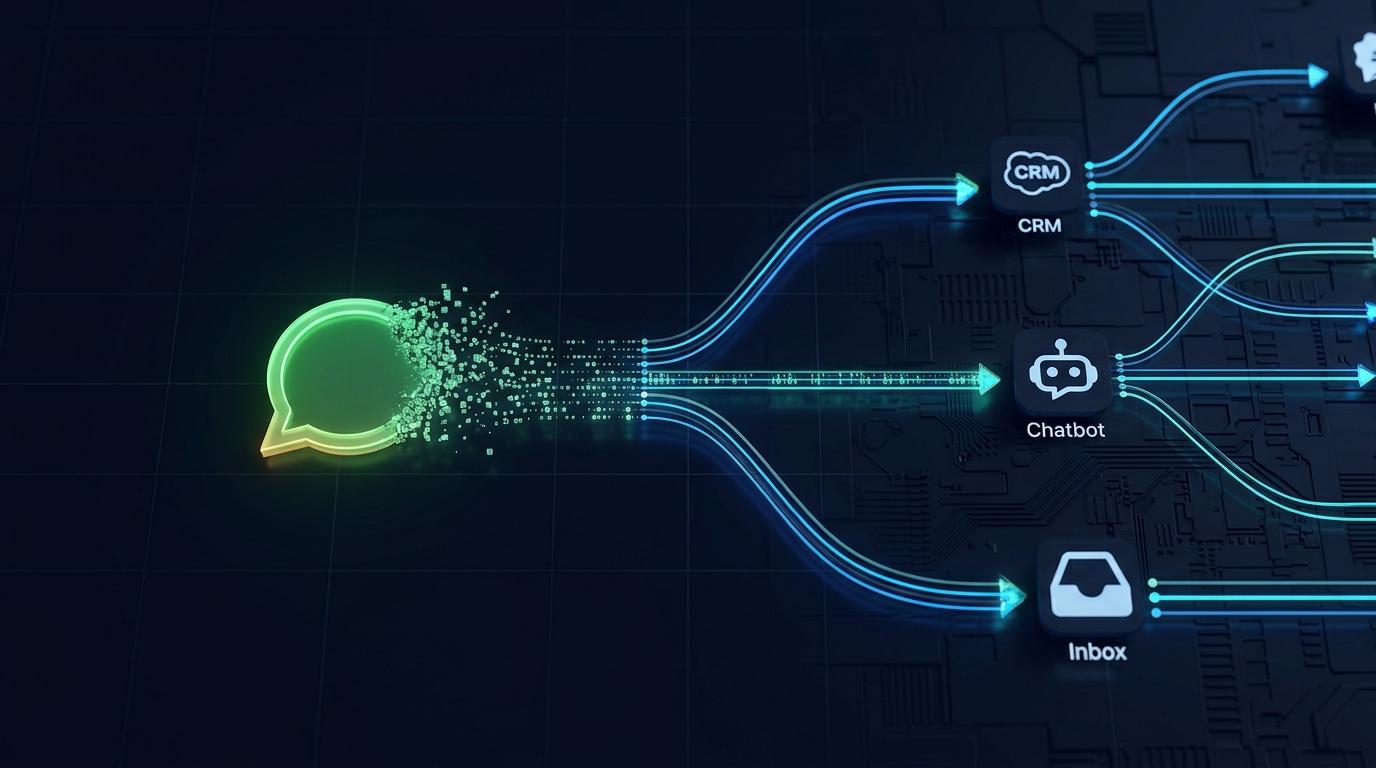
The standard WhatsApp Business app caps you at 256 broadcast contacts and offers zero native automation. Once an e-commerce store or support team scales past a handful of daily conversations, that ceiling turns into lost sales and slower response times, because there is no way to connect the app to a CRM, a support queue, or an automated reply system. The WhatsApp API removes that ceiling entirely, but the setup path is unfamiliar to most business owners moving off the standard app for the first time.
The WhatsApp API (officially the WhatsApp Business Platform) is Meta’s programmatic interface for sending and receiving WhatsApp messages at scale. Getting access requires four steps: verifying your business on Meta Business Manager, creating an app in Meta for Developers, generating a permanent access token, and connecting a Business Solution Provider (BSP) or Meta’s Cloud API to handle message delivery.
Why the Standard WhatsApp App Stops Scaling
The consumer and Business app versions of WhatsApp share the same structural limits: a 256-contact broadcast cap, no way to trigger automated replies based on customer behavior, and no integration path into a CRM, helpdesk, or e-commerce platform. Every conversation has to be handled manually, by a human, one chat window at a time.
This is the exact gap that a is built to close once the API layer is in place.
How to Get WhatsApp API Access
- Verify your business through Meta Business Manager (typically 1-3 business days).
- Create an app in Meta for Developers and add the WhatsApp product to it.
- Generate a permanent access token using a System User, not a temporary user token.
- Connect a Business Solution Provider (BSP) or use Meta’s Cloud API directly to handle message delivery.
Standard App vs. Official API
| Approach | Standard WhatsApp App | Official WhatsApp API |
| Contact Limit | 256 per broadcast | Unlimited, template-based |
| Automation | None | Full — chatbots, CRM triggers, workflows |
| Message Templates | Not required | Required for business-initiated messages |
| Multi-Agent Support | Single device/app | Unlimited agents via unified inbox |
| Setup Complexity | Immediate, no verification | Business verification + developer setup |
What a WhatsApp API Integration Actually Requires Technically
Business-initiated conversations must use pre-approved message templates, reviewed by Meta before they can be sent. Any freeform reply, however, can be sent within the 24-hour customer service window that opens once a customer messages you first.
Receiving messages in real time also requires webhook infrastructure — a server endpoint that Meta pushes incoming messages, delivery receipts, and read statuses to. Most businesses do not build or maintain this themselves; see for the full technical specification.
From API Access to a Working Support and Sales Channel
API access on its own is just a pipe — it does not answer messages, route conversations, or generate leads. Turning that pipe into a working sales and support channel requires a layer on top: automated first responses, conversation routing, and a unified inbox that agents can actually work from.
builds that layer for you, connecting directly to the API you’ve just set up so every incoming message is answered in seconds rather than minutes, with human agents stepping in only where the conversation actually needs them.
The Cost of Staying on the Standard App
Every day spent on the standard app is a day of leads answered too slowly or missed outright. The 256-contact cap and the total absence of automation are not minor inconveniences at scale — they are a ceiling on revenue.
See for what that gap actually costs a growing store. The next correct step is API verification, followed immediately by the automation layer that makes it useful.
FAQ
How long does WhatsApp Business API verification take?
Meta Business Manager verification typically takes 1-3 business days, though it can extend if submitted documents don’t match your registered business name exactly.
Do I need a developer to set up the WhatsApp API?
Direct Cloud API setup requires developer familiarity with webhooks and API tokens. Most businesses instead use a Business Solution Provider that handles the technical layer and provides a ready inbox.
Can I use my personal WhatsApp number for the API?
No. A number must be removed from the standard WhatsApp or Business app before it can be registered to the API, and it cannot be used on both simultaneously.
What happens if my message template gets rejected?
Meta reviews templates for policy compliance before approval. A rejected template can be edited and resubmitted; common causes are promotional language in utility templates or missing variable examples.